Anduril User Manual
-------------------
Anduril is an open-source firmware for flashlights, distributed under
the terms of the GPL v3. The sources can be obtained here:
- https://toykeeper.net/anduril
The URL above redirects to the actual project site. Even if the project
hosting needs to migrate again, it should continue to work. As of late 2023,
this is where it redirects to:
- https://github.com/ToyKeeper/anduril
Quick Start
-----------
After putting a battery in the light and tightening the parts together,
the light should quickly blink once to confirm it has power and is now
operational. After that, basic usage is simple:
- **Click** to turn the light on or off.
- **Hold** the button to change brightness.
- **Release and hold again** quickly to change brightness the other way.
That is all the user needs to know for basic use, but there are many
more modes and features available for people who want more.
For a full list of button mappings, scroll down to the
[UI Reference Table](#ui-reference-table) at the end of this file.
If you have a specific question, it may be covered in the [FAQ](#faq).
Button presses
--------------
Button presses are abbreviated using a simple notation:
- `1C`: **One click.** Press and then quickly release the button.
- `1H`: **Hold.** Press the button, but keep holding it.
- `2C`: **Two clicks.** Press and release quickly, twice.
- `2H`: **Click, hold.** Click two times, but hold the second press.
- `3C`: **Three clicks.** Press and release quickly, three times.
- `3H`: **Click, click, hold.** Click three times, but hold the final press.
The same pattern is used with higher numbers too. For example, `10C`
means ten clicks... and `10H` means ten clicks but hold the final press.
The *number* is how many times to press the button. The *letter* tells
whether to release the final press (C) or keep holding it (H).
Factory Reset
-------------
If you get lost, or if you want to auto-calibrate the temperature sensor, do a
factory reset. This is a good idea to do as soon as you turn on a new light
for the first time, to ensure it has a sane configuration.
The process for this is:
- **Loosen** tailcap
- **Hold** button
- **Tighten** tailcap
- **Keep holding** button for about 4s
Or:
- `13H` in "Off" mode, and keep holding for about 4s
The light should flicker while getting brighter, then briefly burst to
full power. Hold until it reaches full power to do a reset, or let go
of the button early to abort.
On some lights, like products where the tailcap method is impossible,
use `13H` from Off to do a factory reset. If this is difficult, try
counting it like music to make it easier:
```
1 2 3 4
2 2 3 4
3 2 3 4
HOLD
```
Simple UI is enabled after each factory reset.
Simple UI
---------
By default, the light uses a simple UI. This is useful if you lend the
light to someone else, or if you just don't want to bother with any
crazy disco modes.
Simple UI has all the basic functions needed to work as a flashlight,
but the minimum and maximum brightness are limited by default to make it
safer, and any complex or advanced functions are blocked.
### Usage
Functions available in Simple UI include:
- `1C`: On / off
- `1H`: Ramp up (or down, if button was released less than a second ago)
- `2H`: If light is on : ramp down
If light is off: momentary high mode
- `2C`: Double click to go to / from highest safe level
- `4C`: [Lockout mode](#lockout-mode).
Some other modes and functions are available too. When the light is
off, these are the options:
- `3C`: [Battery check mode](#battery-check). (displays voltage once, then turns off)
- `4C`: [Lockout mode](#lockout-mode).
- `10H`: Switch to [Advanced UI](#advanced-ui).
- `15C` or more: [Version check](#version-check-mode).
In Lockout mode with Simple UI, there are a few functions:
- `1H`: Momentary moon
- `2H`: Momentary low
- `3C`: Unlock and turn off
- `4C`: Unlock and turn on
- `4H`: Unlock and turn on at low level
- `5C`: Unlock and turn on at high level
To change between Simple UI and Advanced UI, turn the light off and then
do one of these:
In Simple UI:
- `10H`: Go to [Advanced UI](#advanced-ui).
In Advanced UI:
- `10C`: Go to Simple UI.
### Extended Simple UI
Some lights have additional features enabled in Simple UI, at the
manufacturer's request. This typically includes:
- `Ramp -> 3C`: Toggle smooth or stepped [ramp shape](#ramping--stepped-ramping-modes).
- `Ramp -> 5H`: [Sunset timer](#sunset-timer).
- `Off -> 3H`: Access the [strobe/mood modes](#strobe--mood-modes).
- `Off -> 7C/7H`: Change the [aux LED brightness](#aux-leds--button-leds).
- `Lockout -> 7C/7H`: Change the [aux LED pattern](#aux-leds--button-leds).
If your light uses Extended Simple UI, *think twice about letting kids use it*,
because the strobe/mood modes were not intended to be used in simple mode, and
can reach full power with no thermal regulation.
It is likely that strobe/mood modes will be removed from Extended Simple UI in
the future, for safety reasons, or maybe have already been removed. But that
doesn't help with older firmware, so be careful.
### Configuring Simple UI
Simple UI can be configured in several ways, but not while Simple UI is
active. So go to the Advanced UI, configure things, then go back to
Simple UI.
In [Advanced UI](#advanced-ui)'s "Off" mode:
- `10H`: Configure Simple UI.
Configurable options include:
- floor level
- ceiling level
- number of steps (in stepped ramp)
- turbo style
Other options are inherited from Advanced UI, so change these options normally
and they will carry over to Simple UI:
- ramp style (smooth / stepped)
- smooth ramp speed
- ramp-after-moon style
- memory settings
- auto-lock settings
- aux LED settings
- voltage calibration
- thermal regulation settings
- hardware-specific "misc menu" settings
Advanced UI
-----------
Most of the information below this is for the Advanced UI. Anything not
already noted above is blocked in the Simple UI.
To return to Simple UI from advanced UI, enter 10C while the light is off.
Ramping / Stepped Ramping Modes
-------------------------------
Anduril's ramping mode uses a smooth ramp or a stepped ramp, depending
on which style the user prefers.
Each ramp has its own settings -- floor (lowest level), ceiling (highest
level), and the stepped ramp can also have a configurable number of
steps.
Additionally, Simple UI has its own ramp settings for floor, ceiling,
and number of steps. The smooth/stepped style is inherited from the
Advanced UI's ramp.
There are four ways to access ramping mode when the light is off:
- `1C`: Turn on at the memorized brightness.
(see below for details about what "memorized" means)
- `1H`: Turn on at the floor level. Let go after the light turns on to
stay at the floor level, or keep holding to ramp up.
- `2C`: Turn on at the ceiling level.
- `2H`: Turn on at full power, turn off when released. (momentary turbo)
(in Simple UI, this uses the ceiling level instead of turbo)
While the light is on, a few actions are available:
- `1C`: Turn off.
- `2C`: Go to or from the turbo level.
(or if it has regulated down, "bump" back up to turbo)
(turbo level / behavior is configurable)
- `1H`: Change brightness (up).
If the button was released less than a second ago, or if it's already
at the ceiling, it goes down instead.
- `2H`: Change brightness (down).
- `3C`: Switch to the other [ramp style](#ramping--stepped-ramping-modes). (smooth / stepped)
(or activate the next [channel mode](#channel-modes-aka-tint-ramping-or-multi-channel-controls), when more than one is enabled)
(then use 6C instead, for smooth / stepped toggle)
- `6C`: Switch to the other ramp style. (when `3C` is mapped to next channel)
- `3H`: Momentary turbo (when current channel has no tint to ramp).
- `3H`: [Tint ramping](#channel-modes-aka-tint-ramping-or-multi-channel-controls) (only when current channel has adjustable tint).
- `4H`: Momentary turbo, when `3H` is mapped to tint.
- `4C`: Go to [lockout mode](#lockout-mode).
- `5C`: Go to [momentary mode](#momentary-mode).
- `5H`: Start a [sunset timer](#sunset-timer).
- `7H`: [Ramp config menu](#ramp-config-menu).
- Item 1: Floor level.
- Item 2: Ceiling level.
- Item 3:
Stepped ramp: Number of steps. Can be 1 to 150.
Smooth ramp: Ramp speed.
1 = Full speed, ~2.5s from end to end.
2 = Half speed, ~5s from end to end.
3 = Third speed, ~7.5s.
4 = Quarter speed, ~10s.
- `10C`: Activate manual memory and save the current brightness.
- `10H`: Ramp extras config menu.
- Item 1: Disable manual memory and go back to automatic memory.
(doesn't matter what value the user enters at the prompt)
- Item 2: Configure the manual memory timer.
Sets the timer to N minutes, where N is the number of
clicks. A value of 0 (no clicks) turns the timer off.
- Item 3: Configure whether to ramp up after `Off -> 1H`.
0: Ramp up after moon.
1: Don't ramp up, just stay at the floor level.
- Item 4: Configure Advanced UI's turbo style:
0: No turbo, only ceiling.
1: Anduril 1 style. `Ramp -> 2C` goes to full power.
2: Anduril 2 style. `Ramp -> 2C` goes to ceiling,
or goes to full power if user ramped up to ceiling first.
This value also affects momentary turbo in Ramp and Off modes.
- Item 5: Configure "smooth steps".
0: Disable smooth steps.
1: Enable smooth steps.
Memory determines which brightness level the light goes to with 1 click
from off. There are three types of brightness memory to choose from:
- Automatic: Always uses the last-ramped brightness.
(does not memorize levels accessed by a shortcut,
like turbo, `2C` for ceiling, or `1H-from-off` for floor)
- Manual: Always uses the user's saved brightness.
- Hybrid: Uses the automatic memory brightness if the light was only
off for a short time, or resets to the manual memory level if it was
off for a longer time.
The timer for this is configurable from 0 to ~140 minutes.
Another way to think of it is: There are three styles of memory for the
last-ramped brightness level...
- Always remember (automatic)
- Remember for N minutes (hybrid)
- Never remember (manual)
To choose a memory style, set the configuration accordingly:
| mem type | manual mem | manual mem timer
| -------- | ---------- | ----------------
| automatic | off | any
| manual | on | zero
| hybrid | on | non-zero
If "smooth steps" is enabled, the stepped ramp uses a smooth animation
between steps, and turning the light on/off has the edges smoothed off
too. With "smooth steps" turned off, these brightness changes are
immediate.
Sunset Timer
------------
In the ramp mode or candle mode, it's possible to make the light turn
itself off after a while.
To activate the timer, go to the brightness you want and then use a `5H`
action. Keep holding the button, and the light should blink once per
second. Each blink adds 5 minutes to the timer.
In ramp mode, it slowly dims until it's at the lowest level, then shuts
off. In candle mode, it stays at the same brightness until the final
minute, at which point it dims and dies out.
The user can change the brightness while the timer is active. If this
happens during the final few minutes, it also "bumps" the timer up to a
minimum of 3 minutes. So if it's getting really dim and you need a
little more time, you could do a `5H` to add 5 minutes, or simply ramp up
to the desired brightness.
Other Modes
-----------
Anduril has several other modes too. To access these, press the button
more than 2 times when the light is off:
- `3C`: [Blinky / utility modes](#blinky--utility-modes), starting with battery check.
- `3H`: [Strobe modes](#strobe--mood-modes), starting with the most recently used strobe.
- `4C`: [Lockout mode](#lockout-mode).
- `5C`: [Momentary mode](#momentary-mode).
- `6C`: [Tactical mode](#tactical-mode).
- `7C` / `7H`: [Aux LED configuration](#aux-leds--button-leds).
- `9H`: [Misc Config menu](#misc-config-menu). (only on some lights)
- `10H`: [Simple UI](#simple-ui) configuration menu.
- `13H`: [Factory reset](#factory-reset) (on some lights).
- `15C` or more: [Version check](#version-check-mode).
Lockout Mode
------------
Click 4 times from Off to enter Lockout mode. Or 4 times from Ramp.
This makes the light safe to carry in a pocket or a bag or anywhere else
the button might be pressed by accident.
To exit lockout mode, click 4 times. The light should blink briefly and
then turn on at the memorized level. Or hold the final press to turn on
at the floor level instead:
- `3C`: Unlock and go to "Off" mode
- `4C`: Go to ramp mode (memorized level).
(uses manual mem level if there is one)
- `4H`: Go to ramp mode (floor level).
- `5C`: Go to ramp mode (ceiling level).
Lockout mode also doubles as a momentary moon mode, so the user can do
quick tasks without having to unlock the light. The brightness in
lockout mode has two levels:
- `1H`: Light up at the lowest floor level.
- `2H`: Light up at the highest floor level.
(or the manual mem level, if there is one)
- `3H`: Next channel mode (if more than one is enabled).
It is also possible to make the light lock itself automatically after
being turned off. To enable this, go to lockout mode and use a `10H`
action to activate the auto-lock config menu. Release the button after
the first blink. Then at the prompt, click N times to set the auto-lock
timeout to N minutes.
- `10H`: Auto-lock config menu. Click N times to set timeout to N minutes.
A value of zero disables the auto-lock feature.
So, to turn off auto-lock, don't click at all.
On lights which have aux LEDs, there may be additional functions:
- `7C` / `7H`: Change Lockout Mode's [aux LED pattern](#aux-leds--button-leds).
Blinky / Utility Modes
----------------------
Click 3 times from Off to access Anduril's blinky / utility modes. This
always starts at battery check and the user can proceed to other blinky
modes if Advanced UI is enabled. The sequence is:
- [Battery check](#battery-check).
- [Temperature check](#temperature-check) (if light has a temperature sensor).
- [Beacon mode](#beacon-mode).
- [SOS mode](#sos-mode) (if enabled).
In all of these modes, some basic actions are available:
- Click: Turn off.
- 2 clicks: Next blinky mode.
Additionally, in battery check and temperature check modes:
- `7H`: Go to the voltage config menu or thermal config menu.
In more detail, this is what each blinky / utility mode does:
### Battery check:
Blinks out the battery voltage per cell. Full is 4.2V, empty is
about 3.0V. The light blinks the whole-number digit first, pauses,
then blinks out the "tenths" digit. Then a longer pause, and it
repeats.
So for 4.2V, it would be "blink-blink-blink-blink .. blink-blink".
A "zero" digit is represented by a very quick blink.
On lights with more than one set of LEDs, pressing `3C` during batt
check mode can select which set of LEDs (which channel mode) it uses
to blink out numbers.
The voltage config menu has these settings:
1. Voltage correction factor. This adjusts the battery
measurement sensor, allowing the user to add or subtract up to
0.30V in 0.05V steps. Click N times to enter a value:
`1C`: -0.30V
`2C`: -0.25V
`3C`: -0.20V
`4C`: -0.15V
`5C`: -0.10V
`6C`: -0.05V
`7C`: default, 0V
`8C`: +0.05V
`9C`: +0.10V
`10C`: +0.15V
`11C`: +0.20V
`12C`: +0.25V
`13C`: +0.30V
2. Post-off voltage display timeout. (only on lights with RGB aux)
This setting determines how many seconds the RGB aux LEDs
display the voltage color after the torch goes to sleep. Click
once per desired second, or zero times to turn this function
off.
### Temperature check:
Blinks out the current temperature in degrees C. This number should
be pretty close to what a real thermometer says. If not, it would
be a good idea to enter the thermal config menu and calibrate the
sensor. Or let the light settle to room temperature, then use
factory reset to auto-calibrate the sensor.
The thermal config menu has two settings:
- Current temperature. Click once per degree C to calibrate the
sensor. For example, if the ambient temperature is 21 C, then
click 21 times.
- Temperature limit. This sets the maximum temperature the light
can reach before it will start doing thermal regulation to keep
itself from overheating. Click once per degree C above 30. For
example, to set the limit to 50 C, click 20 times. The default is
45 C, and the highest value it will allow is 70 C.
### Beacon mode:
Blinks at a slow speed. The light stays on for 100ms, and then
stays off until the next blink. The brightness and the number of
seconds between pulses are configurable:
- Brightness is the user's memorized ramp level, so set this in
ramping mode before activating beacon mode. Follows the same
memory rules as ramping -- automatic, manual, or hybrid.
- Speed is configured by holding the button. The light should
blink once per second while holding the button. Release it
after the desired amount of time has passed, to set a new beacon
speed.
For example, to do a 10-second alpine beacon, hold the button
for 10 seconds.
### SOS mode:
Blinks out a distress signal. Three short, three long, three short.
Repeats until light is turned off or until battery is low.
The memorized ramp level determines the brightness of SOS Mode.
Strobe / Mood Modes
-------------------
Anduril includes a few extra modes for a variety of purposes:
- Candle mode
- Bike flasher
- Party strobe
- Tactical strobe
- Lightning storm mode
Click 3 times from Off to access these, but hold the third click for a
moment. Click, click, hold. The last-used strobe mode is remembered,
so it will return to whichever one you used last.
In all of these modes, a few actions are available:
- `1C`: Turn off.
- `2C`: Next strobe / mood mode.
- `1H`: Increase brightness, or strobe faster. (except lightning)
- `2H`: Decrease brightness, or strobe slower. (except lightning)
- `4C`: Previous strobe / mood mode.
- `5C`: Go to [momentary mode](#momentary-mode), for a momentary strobe.
(this is useful for light painting)
Additionally, candle mode has one more action:
- `5H`: Activate [Sunset Timer](#sunset-timer), and/or add 5 minutes to the timer.
In more detail, here is what each mode does:
- Candle mode
Brightness changes randomly in a pattern resembling a candle flame.
If a timer is set, it will run until the timer expires, then get
dimmer for one minute, then sputter and turn itself off. Without a
timer, candle mode runs until the user turns it off. Brightness is
configurable.
- Bike flasher
Runs at a medium level, but stutters to a brighter level once per
second. Designed to be more visible than a normal ramping mode, but
otherwise works mostly the same. Brightness is configurable.
- Party strobe
Motion-freezing strobe light. Can be used to freeze spinning fans
and falling water. Speed is configurable.
- Tactical strobe
Disorienting strobe light. Can be used to irritate people. Speed
is configurable, and the duty cycle is always 33%.
Be careful about heat in this mode, if using it for a long time.
- Police strobe (on some lights)
2-color police style strobe. Only works on lights with 2 or more
colors.
- Lightning storm mode
Flashes at random brightness and random speed to simulate lightning
strikes during a busy lightning storm. Do not look directly at the
flashlight when this mode is running, because it may suddenly go to
full power without warning.
Momentary Mode
--------------
Click 5 times from Off to enter Momentary mode. Or 5 times from Ramp,
or 5 times from a strobe mode.
This locks the flashlight into a single-mode interface where the LEDs
are only on when the button is held down. It is intended for Morse
code, light painting, and other tasks where the light should be on only
for a short time and probably in a pattern.
Momentary mode does either a steady brightness level or a strobe,
depending on which was active before going to momentary mode. To select
which one, go to the mode you want to use, adjust the brightness and
speed and other settings, then click 5 times to enter momentary mode.
In steady mode, brightness is the memorized ramp level, so adjust that
in Ramp Mode before entering momentary mode.
In momentary strobe mode, the settings are copied from the last-used
strobe mode, such as party strobe, tactical strobe, or lightning.
**To exit Momentary Mode, physically disconnect power** by unscrewing the
tailcap or battery tube.
Tactical Mode
--------------
Click 6 times from Off to enter Tactical Mode, or 6 times in Tactical
Mode to exit and go back to "Off".
Tactical Mode provides instant momentary access to high, low, and
strobe, but each of these is configurable. The inputs are:
- `1H`: High
- `2H`: Low
- `3H`: Strobe
Each of these only lasts as long as you hold the button.
Other commands in Tactical Mode are:
- `6C`: exit (go back to Off Mode)
- `7H`: Tactical Mode config menu
- 1st blink: configure tactical slot 1
- 2nd blink: configure tactical slot 2
- 3rd blink: configure tactical slot 3
To change what is in a tactical slot, press `7H`, then release the button
after the 1st, 2nd, or 3rd blink. Then enter a number. Each click adds
1, and each hold adds 10. The number can be:
- 1 to 150: set the brightness level
- 0: last-used strobe mode
- 151+: go directly to a specific strobe mode
151 = party strobe
152 = tactical strobe
153+ = other strobes, in the same order they're in in the `Off -> 3H`
strobe group
This assumes the light has a ramp 150 levels long. Strobe modes start
at the ramp size plus 1, so it may be different if a light has a
different ramp size.
Configuration Menus
-------------------
Every config menu has the same interface. It has one or more options
the user can configure, and it will go through them in order. For each
menu item, the light follows the same pattern:
- Blink once, then go to a lower brightness. The user can keep
holding the button to skip this menu item, or release the button to
dive in and enter a new value.
- If the user released the button:
- Stutter or "buzz" quickly between two brightness levels for a few
seconds. This indicates that the user can click one or more times
to enter a number. It will keep buzzing until the user stops
clicking, so there is no need to hurry.
The actions here are:
- click: add 1
- hold: add 10 (only in versions 2021-09 or later)
- wait: exit
After entering a number, or after skipping every menu item, it waits
until the button is released then exits the menu. It should return to
whatever mode the light was in before entering the config menu.
Ramp Config Menu
----------------
While the light is on in a ramping mode, click 7 times (but hold the
final click) to access the config menu for the current ramp.
Or, to access the ramp config for Simple UI, make sure the Simple UI is
not active, then do a `10H` action from Off.
For smooth ramping mode, there are three menu options:
1. Floor.
(default = 1/150)
2. Ceiling.
(default = 120/150)
3. Ramp speed.
(default = 1, fastest speed)
For the stepped ramping mode, there are three menu options:
1. Floor.
(default = 20/150)
2. Ceiling.
(default = 120/150)
3. Number of steps.
(default = 7)
For the Simple UI mode, there are four menu options. The first three
are the same as stepped ramping mode.
1. Floor.
(default = 20/150)
2. Ceiling.
(default = 120/150)
3. Number of steps.
(default = 5)
4. Turbo style.
(default = 0, no turbo)
**Default values are different for each model of flashlight. The numbers
above are only examples.**
To configure the floor level, click the button equal to the number of
ramp levels (out of 150) at which the floor should be. To set the
lowest possible level, click once.
To configure the ceiling level, each click goes one level lower. So 1
click sets the highest possible level, 2 clicks is the 2nd-highest, 3
clicks is the 3rd-highest level, etc. To set the default of 120/150,
click 31 times.
When configuring the number of steps, the value can be anything from 1
to 150. A value of 1 is a special case. It places the step halfway
between the floor and ceiling levels.
Version Check Mode
------------------
This allows people to see which version of the firmware is installed on
their light. The format for this is usually a model number and a date.
`MODEL.YYYY-MM-DD`
- `MODEL`: Model number
(usually `BBPP` where BB is the brand ID, and PP is the product ID)
- `YYYY`: Year
- `MM`: Month
- `DD`: Day
The version number format has changed a few times, so write down the version
info and check it against the formats below.
The model number is very important when flashing new firmware. Make sure
the new firmware has the same model number as the old firmware. More details
on this are in [Which Hex File](which-hex-file.md). Use the
[MODELS](../MODELS) file to map a model number to the name of a .hex file.
## Version Check Formats
The Version Check function should blink out a series of numbers in one of
several formats:
- `MODEL-YYYY-MM-DD-SINCE-DIRTY`
Anduril 2 from 2023-12 or later. "SINCE" and "DIRTY" may be omitted.
Punctuation makes a "buzz" between sections.
- `MODEL`: model number
- `YYYY-MM-DD`: Year, month, day. This uses the most recent release tag
from git, not the build date.
- `SINCE`: How many commits since the last official release tag?
- `DIRTY`: Adds a "-1" to the end if the repository was locally modified
without committing changes.
- `NNNN-YYYY-MM-DD`
Anduril 2 from 2023-05 or later.
It's a model number and build date,
with "buzz" flashes between sections.
- `NNNN`: model number
- `YYYY`: year
- `MM`: month
- `DD`: day
- `YYYYMMDDNNNN`
Anduril 2 from 2023-05 or earlier.
It's a build date and model number.
- `YYYYMMDD`
This is an old Anduril 1 version. It's just a build date.
If the model name isn't obvious, try looking it up in the PRODUCTS file.
- `1969-07-20`
The date of first human contact with the moon. This value indicates that
the person who built the firmware probably made some sort of error.
If the version doesn't include a model number, you may be able to find
the model in the PRODUCTS file to see which firmware model it probably uses:
https://github.com/ToyKeeper/anduril/blob/trunk/MODELS
Protection Features
-------------------
Anduril includes low voltage protection (LVP) and thermal regulation.
LVP makes the light step down to a lower level when the battery is low,
and if the light is already at the lowest level, it shuts itself off.
This activates at 2.8V. LVP adjustments happen suddenly, in large
steps.
Thermal regulation attempts to keep the light from overheating, and
otherwise adjusts output to stay as close as possible to the
user-configured temperature limit. Thermal adjustments happen
gradually, in steps so small they are difficult for humans to perceive.
Aux LEDs / Button LEDs
----------------------
Some lights have aux LEDs or button LEDs. These can be configured to do
different things while the main emitters are off. There is one aux LED
mode for the regular "off" mode, and another aux LED mode for "lockout"
mode. This allows the user to see at a glance whether the light is
locked.
Aux LED modes typically include:
- Off
- Low
- High
- Blinking
To configure the aux LEDs, go to the mode you want to configure and then
click the button 7 times. This should change the aux LEDs to the next
mode supported on this light.
- `7C`: Next aux LED mode.
If the aux LEDs can change color, there are additional actions to change
the color. It is the same as above, but hold the button on the last
click and then let go when the desired color is reached.
- `7H`: Next aux LED color.
On most lights, the colors follow this sequence:
- Red
- Yellow (Red+Green)
- Green
- Cyan (Green+Blue)
- Blue
- Purple (Blue+Red)
- White (Red+Green+Blue)
- Disco (fast random colors)
- Rainbow (cycles through all colors in order)
- Voltage (uses color to display battery charge)
In voltage mode, the colors follow the same sequence, in the same order
as a rainbow... with red indicating a low battery and purple indicating
a full battery.
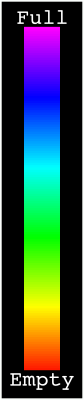
For lights with a button LED, the button LED typically stays on while
the main emitters are on. Its brightness level is set in a way which
mirrors the main LED -- off, low, or high.
For lights with a RGB button LED, the button LED indicates battery
charge during use in the same manner as the aux LED voltage mode.
For lights with front-facing aux LEDs, the aux LEDs typically stay off
when the main emitters are on, and when the light is otherwise awake.
The aux LEDs on most lights only turn on when the light is asleep.
When a light has a single-color aux LED and no RGB, it fast-blinks the
aux LED in "off" modes when voltage is low.
Misc Config Menu
----------------
Some models may have an extra config menu for settings which don't fit
anywhere else. This menu is located at "Off -> 9H" in the advanced UI.
These settings are, in order:
- Tint ramp style: (on some lights)
0 : smooth ramp (blend channels in any proportion)
1 : middle tint only
2 : extreme tints only (only one channel active at a time)
3+: stepped ramp with 3+ steps
- Jump Start level: (on some lights)
Some lights are prone to starting up slowly at low levels, so they
have an option to "jump start" the engine by pulsing a higher power
level for a few milliseconds when changing from off to a low level.
This setting specifies how bright that pulse should be.
The value can be from 1 to 150, but is usually between 20 and 50.
These settings are hardware-specific and may not be present on all
lights. The number of settings in the Misc Config Menu depends on the
hardware model and the firmware version.
Channel Modes (a.k.a. Tint Ramping or Multi Channel controls)
-------------------------------------------------------------
Some lights have more than one set of LEDs which can be adjusted to
change the beam color, shape, or other properties. These lights have
features like tint ramping and channel modes.
On these models, there are some global button mappings which work at all
times unless they're overridden by the mode the light is in:
- `3C`: Next channel mode
- `3H`: Adjust current channel mode (ramp tint, for example)
- `9H`: Channel mode config menu
Details depend on the exact type of light used. For example, if a light
has LEDs in cool white, warm white, and red... that light might have a
few channel modes:
- White blend (adjustable CCT / tint ramping)
- Red only
- Auto-tint
On a light like this, the user could press 3C to rotate through these
different channel modes... white, then red, then auto, then back to
white.
Additionally, in the "white blend" mode, the user could press 3H to
manually adjust the balance between warm white and cool white.
Finally, if the user decides they don't want all of the modes, they can
turn some off. Press `9H` (while on) to start the channel mode config
menu. To disable the auto-tint mode, for example, it is the 3rd mode...
so wait for the 3rd blink, then release the button. Then at the prompt,
enter a value of 0 (wait for the prompt to time out without clicking
anything). Afterward, the auto tint mode should no longer be in the
channel mode rotation. To turn the mode back on later, do the same
thing, but enter a value of 1 (click 1 time at the prompt).
A light can have many different channel modes, so don't be shy about
turning off any modes you don't use. It makes all the others easier to
reach.
If you turn off channel modes until only 1 remains, the `Ramp -> 3C`
action reverts to its single-channel behavior -- switching between a
smooth or stepped brightness ramp. Additionally, when a channel mode
has nothing to adjust with `3H`, the `3H` action also reverts to its
single-channel behavior -- momentary turbo.
The [Misc Config Menu](#misc-config-menu) (`Off -> 9H`) may also have a setting to choose a
tint ramp style. There are a few styles available, by entering
different numbers into that config menu:
0: smooth ramp
1: middle tint only
2: extreme tints only
3+: stepped ramp with 3+ steps
This setting only applies to modes with channel ramping (i.e. tint
ramping), and only when that mode uses the default `3H` event handler.
Custom channel modes may work differently.
FAQ
---
* Q: Why do the aux LEDs come on whenever I switch the light off, regardless
of aux settings?
* A: This is the post-off voltage display feature. It can be configured or
disabled under [battery check](#battery-check) mode.
* Q: What can I do to contribute to Anduril development?
* A: See [Contributing](https://github.com/ToyKeeper/anduril#contributing).
UI Reference Table
------------------
This is a table of all button mappings in Anduril, in one place:
### "Off" Mode
| Mode | UI | Button | Action
| :--- | :-- | ------: | :-----
| Off | Any | `1C` | On (ramp mode, memorized level)
| Off | Any | `1H` | On (ramp mode, floor level)
| Off | Any | `2C` | On (ramp mode, ceiling level)
| Off | Simple | `2H` | On (momentary ceiling level)
| Off | Full | `2H` | On (momentary turbo)
| Off | Any | `3C` | Battcheck mode
| Off | Full | `3H` | Strobe mode (whichever was used last)
| Off | Any | `4C` | Lockout mode
| Off | Full | `5C` | Momentary mode
| Off | Full | `6C` | Tactical mode
| Off | Full | `7C` | Aux LEDs: Next pattern
| Off | Full | `7H` | Aux LEDs: Next color
| Off | Full | `9H` | Misc Config menu (varies per light):
| | | | ?1: tint ramp style
| | | | ?2: jump start level
| Off | Full | `10C` | Enable Simple UI
| Off | Simple | `10H` | Disable Simple UI
| Off | Full | `10H` | Simple UI ramp config menu:
| | | | 1: floor
| | | | 2: ceiling
| | | | 3: steps
| | | | 4: turbo style
| Off | Any | `13H` | Factory reset (on some lights)
| Off | Any | `15+C` | Version check
### Ramp Mode
| Mode | UI | Button | Action
| :--- | :-- | ------: | :-----
| Ramp | Any | `1C` | Off
| Ramp | Any | `1H` | Ramp (up, with reversing)
| Ramp | Any | `2H` | Ramp (down)
| Ramp | Any | `2C` | Go to/from ceiling or turbo (configurable)
| Ramp | Full | `3C` | Change ramp style (smooth / stepped)
| Ramp | Full | `6C` | (same as above, but on multi-channel lights)
| Ramp | Full | `3H` | Momentary turbo (when no tint ramping)
| Ramp | Full | `4H` | Momentary turbo (on multi channel lights)
| Ramp | Any | `4C` | Lockout mode
| Ramp | Full | `5C` | Momentary mode
| Ramp | Full | `5H` | Sunset timer on, and add 5 minutes
| Ramp | Full | `7H` | Ramp config menu: (for current ramp)
| | | | 1: floor
| | | | 2: ceiling
| | | | 3: speed / steps
| Ramp | Full | `10C` | Turn on manual memory and save current brightness
| Ramp | Full | `10H` | Ramp Extras config menu:
| | | | 1: switch to automatic mem, not manual mem
| | | | 2: set manual mem timeout
| | | | 3: ramp after moon or not
| | | | 4: advanced UI turbo style
| | | | 5: smooth steps
### Multi-channel Lights
| Mode | UI | Button | _**Multi-channel lights only!**_
| :--- | :-- | ------: | :-----
| Any | Any | `3C` | Next channel mode (i.e. next color mode)
| Any | Any | `3H` | Tint ramp (if this mode can)
| Any | Full | `9H` | Channel mode enable/disable menu:
| | | | N: click (or not) to enable (disable) mode N
### Lockout Mode
| Mode | UI | Button | Action
| :--- | :-- | ------: | :-----
| Lockout | Any |`1C`/`1H`| Momentary moon (lowest floor)
| Lockout | Any |`2C`/`2H`| Momentary moon (highest floor, or manual mem level)
| Lockout | Any | `3C` | Unlock (go to "Off" mode)
| Lockout | Any | `3H` | Next channel mode (if more than one enabled)
| Lockout | Any | `4C` | On (ramp mode, memorized level)
| Lockout | Any | `4H` | On (ramp mode, floor level)
| Lockout | Any | `5C` | On (ramp mode, ceiling level)
| Lockout | Full | `7C` | Aux LEDs: Next pattern
| Lockout | Full | `7H` | Aux LEDs: Next color
| Lockout | Full | `10H` | Auto-lock config menu:
| | | | 1: set timeout in minutes (0 = no auto-lock)
### Strobe Group Modes
| Mode | UI | Button | Action
| :--- | :-- | ------: | :-----
| Strobe (any) | Full | `1C` | Off
| Strobe (any) | Full | `2C` | Next strobe mode
| Strobe (any) | Full | `3C` | Next channel mode (saved per strobe mode)
| Strobe (any) | Full | `4C` | Prev strobe mode
| Strobe (any) | Full | `5C` | Momentary mode (using current strobe)
| Party strobe | Full |`1H`/`2H`| Faster / slower
| Tactical strobe| Full |`1H`/`2H`| Faster / slower
| Police strobe | - | - | None (brightness is Ramp Mode's last-used level)
| Lightning | Full | `1H` | Interrupt current flash or start new one
| Candle | Full |`1H`/`2H`| Brighter / dimmer
| Candle | Full | `5H` | Sunset timer on, add 5 minutes
| Biking | Full |`1H`/`2H`| Brighter / dimmer
### Blinky Modes
| Mode | UI | Button | Action
| :--- | :-- | ------: | :-----
| Batt check | Any | `1C` | Off
| Batt check | Full | `2C` | Next blinky mode (Temp check, Beacon, SOS)
| Batt check | Full | `3C` | Next channel mode (for number blinks only)
| Batt check | Full | `7H` | Voltage config menu
| | | | 1: voltage correction factor
| | | | ...
| | | | 5: -0.10V
| | | | 6: -0.05V
| | | | 7: no correction
| | | | 8: +0.05V
| | | | 9: +0.10V
| | | | ...
| | | | 2: post-off voltage display seconds
| Mode | UI | Button | Action
| :--- | :-- | ------: | :-----
| Temp check | Full | `1C` | Off
| Temp check | Full | `2C` | Next blinky mode (Beacon, SOS, Batt check)
| Temp check | Full | `7H` | Thermal config menu
| | | | 1: set current temperature
| | | | 2: set temperature limit
| Mode | UI | Button | Action
| :--- | :-- | ------: | :-----
| Beacon | Full | `1C` | Off
| Beacon | Full | `1H` | Configure beacon timing
| Beacon | Full | `2C` | Next blinky mode (SOS, Batt check, Temp check)
| Mode | UI | Button | Action
| :--- | :-- | ------: | :-----
| SOS | Full | `1C` | Off
| SOS | Full | `2C` | Next blinky mode (Batt check, Temp check, Beacon)
### Momentary Mode
| Mode | UI | Button | Action
| :--- | :-- | ------: | :-----
| Momentary | Full | Any | On (until button is released)
| Momentary | Full | **Disconnect power** | Exit Momentary mode
### Tactical Mode
| Mode | UI | Button | Action
| :--- | :-- | ------: | :-----
| Tactical | Full | `1H` | High (tactical slot 1)
| Tactical | Full | `2H` | Low (tactical slot 2)
| Tactical | Full | `3H` | Strobe (tactical slot 3)
| Tactical | Full | `6C` | Exit (go back to Off Mode)
| Tactical | Full | `7H` | Tactical Mode config menu:
| | | | 1: tactical slot 1
| | | | 2: tactical slot 2
| | | | 3: tactical slot 3
### Config Menus
| Mode | UI | Button | Action
| :--- | :-- | ------: | :-----
| Config menus | Full | Hold | Skip current item with no changes
| Config menus | Full | Release | Configure current item
| | | | (goes to Number Entry menu)
| Number entry | Full | Click | Add 1 to value for current item
| Number entry | Full | Hold | Add 10 to value for current item